Remote professionals
Reach collaboration tools, transfer project files and join online meetings.

QuickQ
Choose routes by destination | Use desktop and mobile devices together | Move between work, study and entertainment
Get the QuickQ appWebsites and servers live in different places. Identify the service you want first, then consider local network conditions; available regions are those shown in the client.

Confirm the operating system and device type before choosing an installer.
Open the client, sign in and review any permission prompts.
Start with the recommended setting or switch manually by destination.
A smarter routing approach
Traffic can take different paths by destination, while local services retain their usual route. Results depend on the client version, rules and network environment.
Learn the basics
Gaming depends on latency, jitter and packet loss as well as bandwidth. Choose around the server region and account for local peak hours when comparing results.



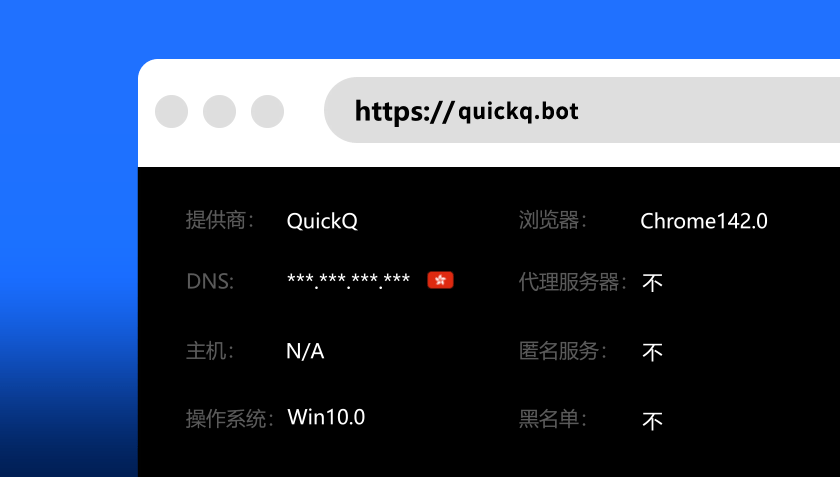
For overseas dashboards, file sync or remote meetings, identify the service region and build a consistent setup instead of repeatedly trying routes at random.
Device guideReach collaboration tools, transfer project files and join online meetings.
Open course platforms, consult resources and complete learning tasks.
Compare routes by server location and observe latency and packet loss.
Find public assets, manage overseas accounts and upload original work.
An accelerator is not a universal fix. Compare what actually changes in everyday use.
| What to observe | Ordinary direct route | Optimised route |
|---|---|---|
| Network path | Decided by the local provider and destination network | Choose different exits according to the destination |
| Quality checks | Page access and download speed are common indicators | Latency, jitter and packet loss also matter |
| Local services | Usually keep their existing path | Routing rules can reduce unnecessary detours |
| Ongoing management | No additional client setup required | Choose a version, approve permissions and manage an account |
A node that works for one task may not suit another. Start with the service you need, then narrow the options.
Try a stable route near the destination website rather than chasing distance alone.
Watch jitter and packet loss; download speed tells only part of the story.
Choose around the game server region and compare actual in-match behaviour.
Save useful settings for each service region to avoid repeated trial and error.
Disconnect the accelerator and open an ordinary page to rule out broadband or Wi-Fi issues.
Check where the site or server is located so you do not pick an unnecessarily distant exit.
Pause cloud sync, system updates and high-resolution video before testing again.
Note the time, route and exact message so the issue is easier to investigate.

Combine recommendations with manual choices for different destinations.

Use official support channels for installation or account questions.

Add a layer of protection when using shared or public networks.

Reduce direct exposure of your IP without assuming complete anonymity.

Use one account across supported systems, subject to your plan limit.
Use this site’s common download entry and review system and publisher prompts.
Respect local law and the policies of workplace, campus and public networks.
Use a unique password, never share verification codes and review login activity.
PayPal, VISA and UnionPay are shown as payment information; availability, amounts and renewal terms depend on checkout.


Check the device operating system and version, then select that platform; installers are not interchangeable.
Test the site on a direct connection, then change route, browser or site cache one step at a time.
Bandwidth is only one factor. Latency, jitter, packet loss and server condition can all affect gameplay.
Start with the recommendation. If a service is tied to a region, compare nearby routes using real activity.
You can normally sign in with the existing account, subject to the plan limit; remove an old device if needed.
Confirm your system, use the common download entry and follow the setup prompts.
Download the app